
Documentation
WhatsApp verification
WhatsApp can verify a user in three ways. Two response fields, action_url and completion, tell your code which one your account runs and what to do next.
WhatsApp can verify a user in one of three ways. Your account runs exactly one of
them, we set it for you, and Code back is the default. Your code never needs to
know the name of the mode: two fields in the POST /otp/send
response, action_url and completion, tell it what to do next.
The three modes
Code back (default)
action_url: a wa.me link · completion: "code"
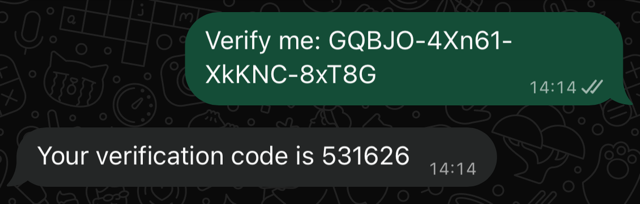
The user opens the link and sends the prefilled message. We reply over WhatsApp
with their code. They type it into your UI and you call
POST /otp/verify, as on any other channel.
Inbound approve (on request)
action_url: a wa.me link · completion: "inbound"
The user opens the link and sends the prefilled message. That message approves the
OTP by itself: no code is sent and there is nothing to verify. Poll
GET /otp/{otp_id} every 3 to 5 seconds until status leaves
pending, or take the otp.approved webhook.

Template (on request)
action_url: null · completion: "code"
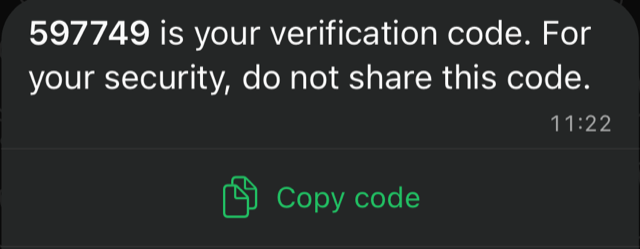
We push the code to the user over WhatsApp, with no link and nothing for them to
send. This is exactly the SMS or Telegram flow: the user types the code and you
call POST /otp/verify. Nothing WhatsApp-specific to build.
The rule of thumb
action_url null means treat WhatsApp like SMS. action_url set means show the
link, then look at completion: "code" expects a code input, "inbound" expects
you to wait for approval.
action_url | completion | What your code does |
|---|---|---|
null | "code" | Collect the code, call verify. Same as SMS. |
a wa.me link | "code" | Show the link, collect the code, call verify. |
a wa.me link | "inbound" | Show the link, then poll status or wait for the webhook. Never show a code input. |
completion is on the send, resend, and status responses, and it is frozen on the
OTP when it is created: switching your account’s mode never re-points a
verification that is already in flight.
The link flows, step by step
These four steps cover Code back and Inbound approve. Under Template there is nothing extra to do.
- Send. Call
POST /otp/sendas usual. When routing picks WhatsApp the response carries anaction_urland the OTP stayspending: nothing has reached the user yet. - Show the link. Put a “Continue on WhatsApp” button in front of the user that
opens
action_url. It launches WhatsApp with a prefilled message to our business number; the user only has to tap Send. - Finish. Code back: we reply with the code, the user types it, you call
POST /otp/verify. Inbound approve: the message itself approves the OTP, so watchGET /otp/{otp_id}or theotp.approvedwebhook. - No WhatsApp? Move to SMS. The link flows do not fall back on their own: if
the user has no WhatsApp, or nothing arrives, call
POST /otp/resendwith{"channel":"sms"}. A fresh code goes out over SMS and you verify as usual. A plain resend only returns the same link again.
Example send responses
Code back:
{
  "otp_id": "9f3c1b2a-…",
  "status": "pending",
  "channel": "whatsapp",
  "masked_recipient": "+14****71",
  "action_url": "https://wa.me/13845555555?text=Verify%20me%3A%20aB3xZ-9kQ2m-7pLw4-2mN8k",
  "completion": "code"
}
Inbound approve:
{
  "otp_id": "9f3c1b2a-…",
  "status": "pending",
  "channel": "whatsapp",
  "masked_recipient": "+14****71",
  "action_url": "https://wa.me/13845555555?text=Verify%20me%3A%20aB3xZ-9kQ2m-7pLw4-2mN8k",
  "completion": "inbound"
}
Template:
{
  "otp_id": "9f3c1b2a-…",
  "status": "pending",
  "channel": "whatsapp",
  "masked_recipient": "+14****71",
  "action_url": null,
  "completion": "code"
}
Where WhatsApp sits in your routing
Under Template, WhatsApp is a code channel like any other: it takes its position in your fallback order in both directions, and a plain resend both advances into it and out of it.
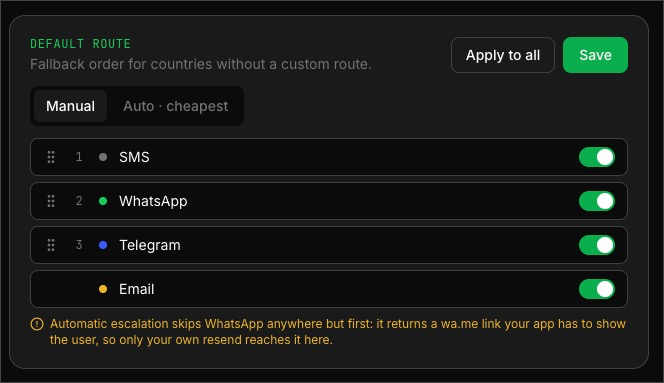
Under the two link modes it works as the first channel only, because reaching the user takes a step only your app can do (showing the link):
- A plain
POST /otp/resendskips WhatsApp anywhere but first. If it sits further down your order, automatic escalation passes over it to the next channel. The one way onto it from there is your ownresend {"channel":"whatsapp"}, whose response carries theaction_urlfor your app to show. - Once the OTP is on a link, a plain resend re-returns the same link instead
of sending anything. To leave WhatsApp, name the channel:
resend {"channel":"sms"}, which delivers a fresh code there.
The routing panel says the same thing when a link-mode account puts WhatsApp below first; under Template the warning does not appear.
In the sandbox
With a test key, a WhatsApp send in a link mode returns a sample action_url so you
can see the shape, but the link is not live and the OTP stays pending. In the
sandbox completion is always "code", whatever mode your account runs: Inbound
approve can only be exercised with a live key.
To complete a flow in the sandbox, move it onto SMS with
resend {"channel":"sms"} (the code is then the fixed 123456), or use a live key
against your own number. Under Template a sandbox send has no action_url and the
fixed code 123456 verifies directly, as on SMS.
Want a different mode?
Email info@otp.com with the mode you want and we switch your account; there is nothing to change on your side beyond reading the two fields above.
One thing to check before asking for Inbound approve: every client you ship must
read completion, or it will show a code input for an OTP that never gets a code.